

The safest way to protect a laptop screen is careful handling first, a suitable accessory second. Use a padded sleeve or shock-resistant case for transit, and only add a screen film or filter once you have confirmed it fits your exact model. Removable anti-glare or privacy filters beat permanent adhesive films on thin-and-light laptops, and you should never leave a mouse, cable or phone on the keyboard before closing the lid. Cases, sleeves and model-matched protectors are available, with some sellers offering a sourcing service for unlisted laptop models.
TL;DR:
- Using a padded sleeve or case for transit minimizes impact and prevents pressure damage caused by bag contents or rough handling.
- Select a screen protector based on specific needs: privacy filters to safeguard against prying eyes or anti-glare films to reduce reflections, rather than relying solely on scratch resistance.
- Accurately measure and confirm compatibility for your exact laptop model before purchasing a screen protector to avoid fitting issues and potential screen damage.
- Avoid stacking accessories or applying thick films that can add pressure on the hinge and cause cracks or delamination over time.
- Proper cleaning with a microfiber cloth and distilled water prevents damage from harsh chemicals or improper wiping techniques.
Table of Contents
- Practical methods to prevent laptop screen damage day to day
- Screen protector types and what they actually guard against
- How do you choose a laptop screen protector that fits safely?
- How do you clean a laptop screen without damaging it?
- Approaches to fit, safety and sourcing for hard-to-find models
- Temporary screen protection for travel and repair
- Does a case actually protect against drops and impacts?
- What actually causes most laptop screen damage?
- Can you fix minor laptop screen damage yourself?
- The overlooked truth about laptop screen protection
- Laptop screen protection products worth considering
- Sources
- FAQ
Practical methods to prevent laptop screen damage day to day
Most laptop screen damage happens during the boring bits: picking the machine up, shoving it in a bag, closing the lid in a hurry. Fix those habits and you have solved most of the problem before you even think about buying a protector.
Start with how you carry the thing. Lift a laptop by its base, not by the screen edge or corner, because the hinge and display are not designed to take that leverage repeatedly. If your manufacturer recommends a full shutdown rather than sleep mode before transport, follow it. Spinning components and active displays cope worse with knocks than a laptop that is properly powered down.
A padded sleeve or a structured protective case matters more than most people assume. Foam or neoprene padding with some millimetres of thickness gives a reasonable buffer against the everyday bumps of a commute, a train table edge, or being set down a little too firmly on a desk. Anything thinner is really just a dust cover.
Bag organisation causes more damage than people realise. A charger brick, a water bottle, or a set of keys sharing a compartment with your laptop can press against the lid every time the bag shifts. Keep the laptop in its own padded section, away from anything with hard edges or unpredictable weight.
Before you close the lid, check the keyboard. Manufacturers are explicit about this: Dell’s own guidance warns against placing objects on the keyboard before closing the lid, because the pressure transfers straight into the display when it shuts. A pen, a stray earbud, even a fine layer of crumbs can leave a permanent pressure mark or crack the panel.
A few habits worth building in:
- Lift and carry by the base, never by the screen.
- Power down fully before travel if your manufacturer recommends it.
- Give your laptop its own padded compartment, separate from chargers and bottles.
- Sweep the keyboard with your hand before closing the lid, every time.
- Avoid stacking books or folders directly on a closed laptop.
Keyboard covers deserve a specific warning. They are popular for keeping crumbs and spills out of the keys, but on thin-and-light laptops, a thick silicone cover can add just enough extra height that the lid no longer closes flush. That constant, low-level pressure on the screen over weeks or months is exactly the kind of thing that causes delamination or hairline cracks near the hinge.
Pro Tip: If you use a keyboard cover, test the lid closure with it fitted before you rely on it daily. If the laptop doesn’t sit flush and click shut easily, the cover is too thick for your model.
Screen protector types and what they actually guard against
Not every protector solves the same problem, and buying the wrong type for your worry is a common, avoidable mistake. It helps to think about what you are actually trying to prevent: prying eyes, glare, or scratches.
Privacy filters use a micro-louvre structure, essentially rows of tiny vertical blinds embedded in the film, that narrow the viewing angle so your screen looks normal head-on but appears dark from the side. These are the obvious choice if you regularly work on trains, in shared offices, or in cafés and don’t want the person next to you reading your inbox.
Anti-glare or matte films work differently: they diffuse reflected light rather than blocking a viewing angle, which cuts down on the mirror-like glare you get under office strip lighting or near a window. The trade-off is a very slight softening of colour vibrancy and text sharpness, since you are adding a diffusing layer over a panel engineered for clarity. Retailers including 3M market anti-glare filters alongside claims about reduced blue light, which is worth weighing against your actual need rather than buying on the claim alone.
PET and TPU films versus tempered glass is really a question of thickness and feel. PET films are thin and cheap but wear out faster. TPU films are slightly thicker and self-heal light scratches. Tempered glass gives the best scratch resistance and the most glass-like touch feel, but it adds noticeably more height, which brings us back to the clearance problem.
Removable versus adhesive is arguably the most important distinction of all. Adhesive films bond to the screen and, when removed, can pull away anti-reflective coatings or leave residue behind. Removable, clip-on filters sit over the bezel instead, adding zero risk to the coating underneath. For touchscreens and 2-in-1 convertibles, always confirm the protector is rated for touch input. A privacy filter or glass panel not designed for touch will dull responsiveness or introduce lag that makes the touchscreen feel broken.
Our guide to anti-glare screen protectors goes into more depth on how the coatings behave under different lighting.
How do you choose a laptop screen protector that fits safely?
Getting the fit wrong is the single biggest risk in this entire category, and it is where most buying guides go quiet. Follow this order and you will avoid the expensive mistakes.
- Measure your exact model, not just the screen diagonal. A 13-inch laptop from one manufacturer can have a completely different bezel width, corner radius, and camera cutout position from another 13-inch laptop. Match by model number wherever the retailer allows it.
- Read the manufacturer’s own clearance warnings. Investigative reporting has found that adding a screen protector to some thin-and-light laptops can increase the risk of hinge pressure damage or screen cracking, because the extra fraction of a millimetre is enough to disrupt tolerances engineered to be almost zero.
- If your laptop has famously tight hinge clearance, favour a removable clip-on filter or skip the film entirely and rely on a case or sleeve instead. This sidesteps the thickness problem completely.
- Confirm touch compatibility before buying tempered glass, if your model has a touchscreen. Check the product listing explicitly states touch support rather than assuming it.
- Test adhesive on a small, inconspicuous area first, if you are set on a film, and be ready to stop the moment you see any lifting, bubbling, or colour change.
Pro Tip: Engineers have flagged that stacking third-party accessories, a webcam cover here, a thick film there, a rigid keyboard cover on top, can each add tiny amounts of constant pressure that, combined, are enough to cause permanent pressure marks or delamination on some ultrabooks. One accessory rarely does the damage. It’s usually the combination.
There is a persistent myth worth killing here: more layers of protection do not automatically mean more durability. On many modern laptops, the opposite is true, because manufacturing tolerances between the lid and keyboard deck are now so tight that even a fraction of a millimetre of added film thickness removes the safety margin the engineers built in.
Our types of screen protectors guide breaks down PET, TPU and glass options in more technical detail if you want to compare specifications side by side.
How do you clean a laptop screen without damaging it?
Cleaning is where most accidental screen damage during “maintenance” actually happens, usually from the wrong cloth or the wrong liquid rather than a knock.
Power the laptop down first. This matters more than people think: a screen you can see is on shows every smear, but it also makes it harder to spot pressure damage while you’re wiping, and static from an active display can attract more dust straight back onto the panel. Wipe gently with a dry microfibre cloth for everyday dust. For stubborn marks, Dell’s own cleaning guidance recommends lightly dampening the cloth with distilled water rather than tap water, which can leave mineral streaks. Avoid window cleaners, alcohol-based sprays, or paper towels entirely. All three can strip anti-reflective coatings or scratch the surface with fibres you can’t see.
If you’re removing an old adhesive film, peel slowly at a low angle rather than pulling straight up. A sudden yank is what causes coating damage. If the film resists, a tiny amount of isopropyl alcohol applied to the edge can loosen the adhesive, but use it sparingly and never apply it directly to the screen itself.
Watch for these warning signs a protector is doing more harm than good:
- Bubbling or lifting at the edges that gets worse over time.
- Rainbow or hazy patches, which often signal delamination underneath.
- A faint pressure outline visible when the screen is off.
Pro Tip: If you spot a pressure mark or delamination starting, stop using whatever accessory is causing it immediately. Continued use tends to turn a cosmetic issue into a permanent one within weeks.
A clean-with-dry-cloth pass every few days and a proper distilled-water clean every couple of weeks is usually enough. If you ever see actual cracking or spreading delamination under the glass itself, that’s a job for a repair professional, not a cloth.
Approaches to fit, safety and sourcing for hard-to-find models
Catalogue offerings include screen protectors, camera lens protectors, cases and back covers across various smart devices, with model-specific listings rather than generic “fits most” claims that can overlook clearance issues.
For less common laptop models, some providers run a request-based sourcing service. If a specific model is not listed, a request can be submitted with the model information to help find and add a matching product to the catalogue. This solves the exact compatibility problem that causes most protector-related laptop damage: buying something close enough rather than something confirmed to fit.
Editorial content from SmartProtectors, including the guides on anti-glare protectors and choosing the right protector type, works through the same compatibility-first logic used throughout this guide: measure first, check clearance warnings second, buy last.
Temporary screen protection for travel and repair
Not every situation calls for a permanent film or a full-time filter. Flying with a laptop, sending it for a repair, or lending it to a colleague for a week are all cases where a temporary solution makes more sense than committing to an adhesive product.
A clip-on privacy or anti-glare filter is the obvious temporary option, since it removes in seconds with no residue and no risk to the coating underneath. If you’re travelling and want extra padding without buying a dedicated protector, a soft microfibre cloth folded once over the screen, tucked inside a padded sleeve, adds a genuine buffer against light knocks during handling at security or baggage drop.
Sending a laptop for repair raises a different concern: the screen is often the most exposed part during transit to a service centre, and couriers rarely treat parcels as gently as the label suggests. A rigid protective case, rather than just a sleeve, is worth using here specifically because it resists compression from other items stacked on top in transit, which a soft sleeve alone cannot do.
If you’re lending a laptop short-term or handing it over for a repair assessment, a temporary clip-on privacy filter also protects sensitive information on screen during handling by someone else, which is a detail people rarely think about until it’s relevant. None of these temporary measures need to be expensive. The point is matching the protection to how long you actually need it, rather than defaulting to a permanent film for a one-off trip.
Does a case actually protect against drops and impacts?
A screen protector, film or filter, does very little for drop protection. It is designed to resist surface scratches and manage light and viewing angles, not to absorb the force of an impact. That distinction gets lost in a lot of marketing copy that lumps “protection” together as one category.
Drop and impact protection is a structural problem, and it’s solved by what surrounds the laptop, not what sits on the glass. A shock-resistant case with reinforced corners and a raised lip around the screen edge absorbs and redistributes impact energy before it reaches the display. That’s a fundamentally different mechanism from a thin film sitting flush against the panel.
This is where the earlier warning about clearance really lands: a rigid protective case with a small standoff gap between the case shell and the screen gives genuine impact absorption, whereas a screen protector adds thickness in exactly the wrong place, right against the panel itself, without adding any meaningful cushioning.
If drops are your main worry, whether that’s a child, a commute with an unpredictable bag, or a work site, prioritise a durable protective case over a screen film. The case handles the physics of an impact. The film, at best, keeps the surface looking clean while that happens.
What actually causes most laptop screen damage?
Pressure is the leading cause, and it’s rarely dramatic. It’s a phone left on the keyboard, a stack of books, a bag compartment shared with a water bottle. The damage builds silently until a hairline crack or a pressure mark appears seemingly out of nowhere, when really it’s the result of weeks of low-level stress.
Impact is the second major cause: drops, knocks against a desk edge, or a laptop bag swung a little too carelessly onto a train seat. Unlike pressure damage, impact damage tends to be sudden and obvious, a spidering crack or a dead patch on the display.
Thermal and moisture stress causes damage less often but more severely when it does. Leaving a laptop in direct sunlight on a car dashboard, or closing the lid on a screen still damp from condensation, can warp seals or cause internal moisture damage that shows up as discolouration weeks later.
Prevention comes down to removing the opportunity for each of these, rather than adding a single product and assuming the job is done:
- Keep the keyboard clear before every single closure, no exceptions.
- Store the laptop in its own padded compartment, away from anything rigid or heavy.
- Avoid leaving it in direct heat or bringing it in from cold straight into a hot bag.
None of these cost anything. They’re habits, and they prevent more damage than any accessory on this page.
Can you fix minor laptop screen damage yourself?
Some issues are genuinely fixable at home. Others need a professional, and knowing the difference saves you from turning a small problem into a write-off.
Dead or stuck pixels sometimes resolve with gentle, repeated pressure massage using a soft cloth over the affected area, though results are inconsistent and this carries a small risk of making things worse if you press too hard.
Light surface scratches on the glass itself, not the underlying panel, can sometimes be reduced with a specialist plastic polish applied with a microfibre cloth, though this only works on the outer coating and does nothing for scratches that have reached the display layer underneath.
Smudges that look like damage but aren’t are worth ruling out first. What looks like a crack or stain under certain light is sometimes just residue from an old adhesive protector or a fingerprint trapped between a film and the glass. A proper clean, following the method covered earlier, resolves this more often than people expect.
What you should not attempt yourself: any crack that has reached the display layer (visible as spreading discolouration or dead zones), delamination between layers, or any damage involving liquid ingress. These require a professional repair assessment, and attempting a DIY fix risks turning a repairable fault into total display failure. If you’re at the stage of considering a screen replacement or trading in a badly damaged device, services such as display resale and repair specialists can offer a route forward once DIY options are exhausted.
The overlooked truth about laptop screen protection
Most advice on this topic treats screen protectors like sunscreen: apply liberally, more coverage is always safer. That’s backwards for laptops. The evidence on clearance and hinge tolerances tells a different story: on plenty of thin-and-light models, the safest choice is often no adhesive film at all, just disciplined handling and a well-fitted case.
The conventional advice usually skips straight to “which protector should I buy” without asking whether a protector is even the right tool for the risk in question. If your worry is a nosy commuter, you need a privacy filter, not a scratch guard. If your worry is drops, you need a structural case, not a film. Conflating this is how people end up with the wrong product and a false sense of security.
What should come first, always, is the compatibility check. Measure the model, read the manufacturer’s clearance notes, and only then decide between removable and adhesive options. Get that order right and the rest of this guide becomes far less necessary, because most screen damage was never really about the absence of a film. It was about handling habits and a badly fitted accessory doing more harm than good.
— Dian
Laptop screen protection products worth considering
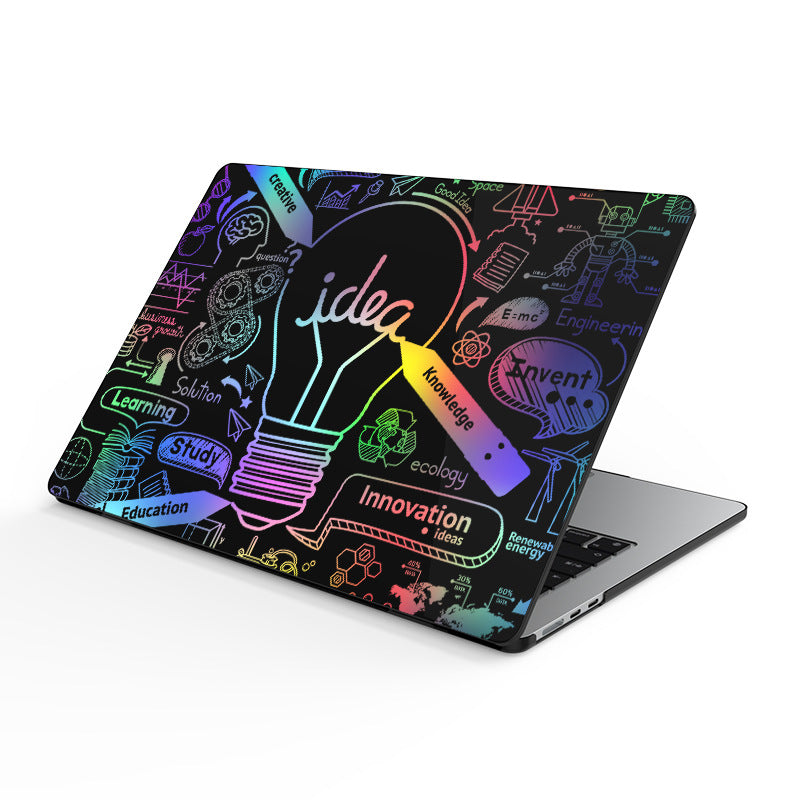
If your laptop travels with you daily, the leather laptop sleeve case gives you slim, low-profile padding that fits into a bag without adding bulk, ideal for anyone commuting between home and office. If you need something sturdier for genuine knock resistance, the shock-resistant MacBook case adds structural protection around the whole shell, not just a soft buffer. And if your laptop mostly lives on a desk and you want a fitted, model-specific cover rather than bulk, the painted shell case for MacBook Air gives a custom fit without the clearance risks of an adhesive screen film.
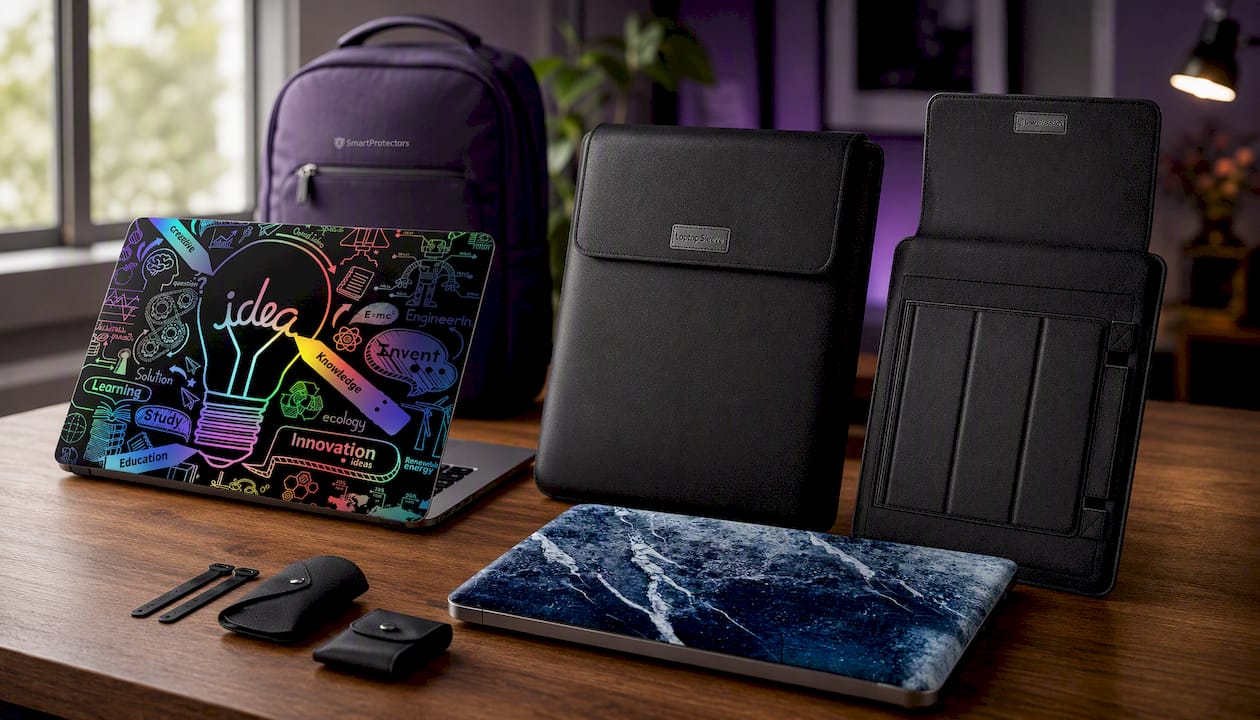
Buying the right one is a three-step check, not a guessing game. Measure your laptop’s exact model number rather than relying on screen size alone, since two 13-inch laptops can have entirely different bezel and corner dimensions. Check that model number against the listing before ordering. If you can’t find your exact model in the catalogue, use the special-order request service and supply the model number, and where available the serial number, so the right product can be sourced and added. Browse the current range at SmartProtectors to find your model or submit a request today.
Sources
- Why you should never use a screen protector on a MacBook (Lifehacker)
- Notebook best practices for care and use (Dell support)
- Privacy screen protectors for laptops: a complete guide (Laptop Outlet)
FAQ
How can I protect my laptop screen?
Combine careful handling, lifting by the base, keeping the keyboard clear before closing, with a padded sleeve or case for transit, and only add a screen film once you’ve confirmed it fits your exact model.
Is it a good idea to put a screen protector on a laptop?
It depends on your model. Some thin-and-light laptops have such tight hinge clearances that added film thickness can increase the risk of pressure damage or cracking, so a removable filter or a case is often the safer route.
How can I protect my laptop screen from scratches?
A well-fitted TPU film or tempered glass panel resists surface scratches, but always confirm touch compatibility for touchscreens and check your manufacturer’s clearance guidance before fitting one.
What is the best screen protector for a laptop?
There’s no single best option: privacy filters suit commuters worried about prying eyes, anti-glare films suit anyone under harsh office lighting, and removable filters generally carry less compatibility risk than adhesive films on slim models. SmartProtectors lists model-specific options and can source one if your laptop isn’t in the catalogue yet.
How often should I clean my laptop screen?
A quick dry microfibre wipe every few days keeps dust off, and a proper clean with a distilled-water-dampened cloth every couple of weeks handles smudges without damaging the coating.