

The fastest reliable ways to identify your phone model are: check Settings > About, read the sticker on the device box, or dial *#06# to pull up the IMEI. Any one of those three will give you the information you need within about 30 seconds.
- iPhone: Go to Settings > General > About. Look for “Model Name” and “Model Number.”
- Android: Go to Settings > About phone (or About device). Find “Model Name” and “Model Number.”
- Box or receipt: The sticker on the original packaging lists the model number, IMEI, and serial number together.
- IMEI shortcut: Dial *#06# on any phone. The IMEI appears on screen immediately.
Pro Tip: The model name (“iPhone 15 Pro”) tells you what to search for when buying a case. The model number (e.g. A3293) tells a repair technician exactly which hardware variant you have. Both matter, and they are not always the same thing.
Key takeaways
The fastest and most reliable way to identify your phone model is to check Settings > About on the device itself, then verify with the box sticker or IMEI if needed.
| Point | Details |
|---|---|
| Check Settings first | iPhone: Settings > General > About. Android: Settings > About phone. Both show model name and model number. |
| Use the box or IMEI | The box sticker lists model number, IMEI, and serial together; dial *#06# for IMEI instantly. |
| Map model numbers carefully | Android SM- prefixes and iPhone A-numbers encode regional variants; always verify against the manufacturer’s official list. |
| Apps for deeper checks | AIDA64, CPU-Z, and Droid Hardware Info read Android hardware identifiers directly; GSMArena’s model finder works in-browser. |
| SmartProtectors | Once you have the exact model name, search SmartProtectors for compatible screen protectors, lens protectors, and cases, including hard-to-find models. |
Table of Contents
- How to find your iPhone model in Settings and on Apple’s lists
- How to find your Android phone model and handle variant codes
- Using IMEI and serial numbers to confirm a device’s identity
- Online model finders and apps that can detect your phone
- Physical checks: where to look when the phone won’t turn on
- What model name, model number, serial and IMEI actually mean
- What to do if you still cannot identify the model
- Get the right protector once you know your model
- Why exact model information matters more than most people realise
- Sources
How to find your iPhone model in Settings and on Apple’s lists
The quickest path is Settings > General > About. Scroll down and you will see three fields worth noting: Model Name (e.g. “iPhone 15 Pro Max”), Model Number, and the part number. Tap the Model Number field once and it cycles between the part number format (MU7C3ZD/A) and the A-number format (A3293). The A-number is the one Apple uses in its official model lists.
Older iPhones, roughly iPhone 5 and earlier, have the model number engraved on the back casing. If the text is worn, a magnifying glass and good light help. On iPhones with a removable SIM tray, the model number is sometimes laser-etched on the tray itself.
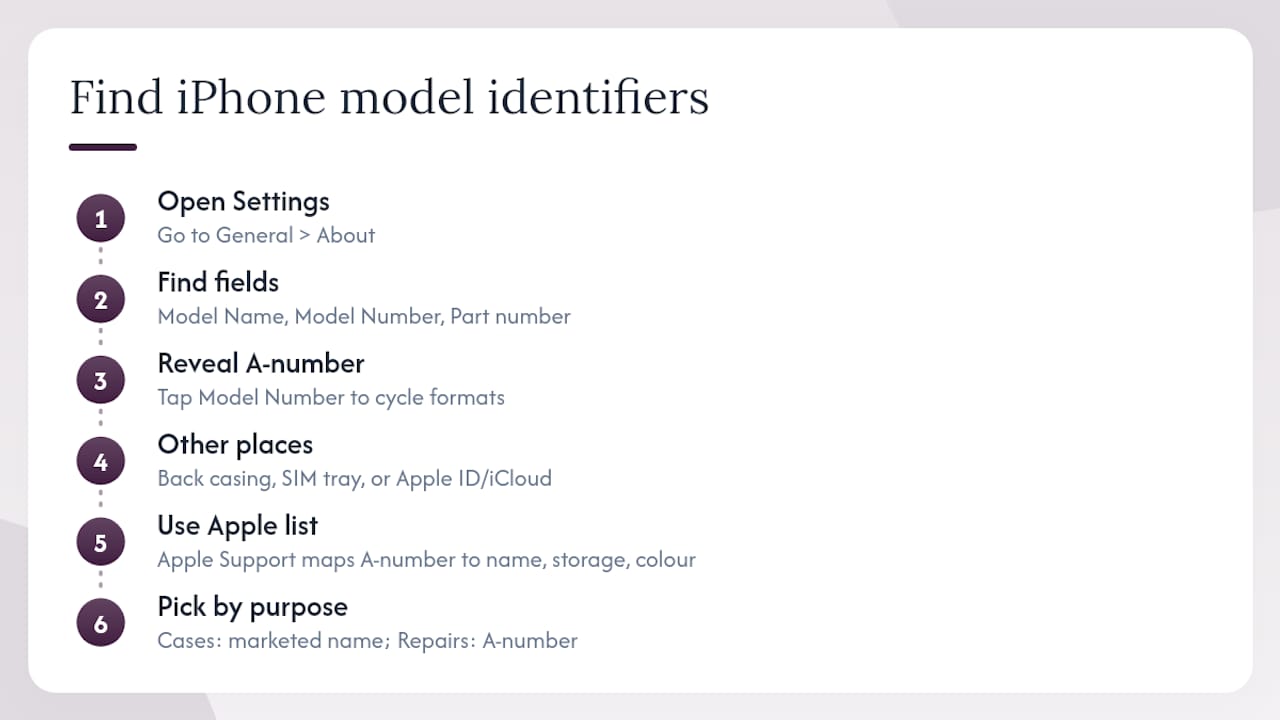
Once you have the A-number, Apple Support’s iPhone model list maps it to the marketed model name, storage tier, and colour. That step matters because the same marketed name can cover multiple A-numbers tied to different regional hardware. If you are buying a case or a screen protector, the marketed model name is enough. If you are ordering a replacement screen or battery, the A-number is what the repair technician actually needs.
Pro Tip: If the phone won’t power on, check your Apple ID at appleid.apple.com. Any iPhone registered to your account shows the model name under Devices. Your iCloud settings page does the same.
Verification note: Apple Support’s model identification page covers every iPhone generation from the original through the current lineup. It is the definitive source for mapping part numbers to marketed models, and it is updated with each new release.
How to find your Android phone model and handle variant codes
According to Asurion, the most reliable path on Android is Settings > About phone or About device. On Samsung devices running One UI, the path is sometimes Settings > About phone > Software information. On Google Pixel phones, it sits directly under Settings > About phone. OnePlus routes it through Settings > About device.
What you are looking for is the Model Name (e.g. “Galaxy S24 Ultra”) and the Model Number (e.g. SM-S928B). Those two fields together tell the full story.
The model number is where Android gets complicated. Samsung model numbers start with “SM-” followed by letters and numbers that encode the region and carrier variant. SM-S928B is the European version of the Galaxy S24 Ultra; SM-S928U is the US carrier variant. They look almost identical, but their camera software, network bands, and sometimes their physical dimensions differ. Buying a case for the wrong variant is rarely a problem, but ordering a replacement screen for the wrong variant almost always is.
Quick alternative checks when Settings is not accessible:
- Back of the phone: many Android devices have the model number printed in small text near the bottom edge or under a removable back cover.
- Under the battery: on older phones with removable batteries, a sticker inside the battery compartment lists the model and IMEI.
- The original box sticker: model number, IMEI, and serial number are all there.
- Your Google account at myaccount.google.com > Security > Your devices shows the model name for any Android device signed in with your Google account.
Using IMEI and serial numbers to confirm a device’s identity
Your IMEI (International Mobile Equipment Identity) is a 15-digit number unique to your specific handset. Your serial number is a separate identifier used by the manufacturer for warranty and service records. Neither is the same as the model number, but both can lead you to it.
Dialling *#06# on any phone displays the IMEI immediately, no Settings navigation required. On dual-SIM phones, two IMEIs appear. You can also find both IMEI and serial in Settings > About phone (Android) or Settings > General > About (iPhone).
Step-by-step: using IMEI to identify a model
- Dial *#06# or open Settings > About and note the IMEI.
- Go to your network carrier’s account portal (e.g. EE, Vodafone, O2, Three). Registered devices usually show the model name against the IMEI.
- If the carrier portal doesn’t help, go to the manufacturer’s support site (Apple, Samsung, Google) and enter the serial number. Most return the model name and warranty status.
- As a last resort, use a reputable IMEI checker. The GSMA’s official Imei database returns the model name and basic device details.
- Cross-reference the result with the box sticker if you still have it.
The IMEI is also what you report to your carrier and to Action Fraud if a phone is lost or stolen. It lets the carrier blacklist the device so it cannot be activated on UK networks.
Pro Tip: Photograph the IMEI sticker on the box and store it in a secure notes app or email it to yourself. If the phone is ever lost, you will have the number without needing the device.
One caution: never post your IMEI publicly on social media or a forum. A bad actor with your IMEI can attempt fraudulent warranty claims or, in some cases, clone the identifier.
Online model finders and apps that can detect your phone
The quickest browser-based route is GSMArena’s model finder, which reads your browser’s User Agent string and cross-references it against GSMArena’s device database to suggest the most likely model. It takes about three seconds and requires no app install.
Browser-based detectors like WhatPhone go a step further, combining the User Agent with high-entropy client hints and screen resolution fingerprinting to narrow down the model. On Android, this works well. On iOS, Apple restricts the exact model identifier in browsers for privacy reasons, so tools must infer the model from screen dimensions and other signals rather than reading it directly. The result is usually accurate to the model family (e.g. “iPhone 15 series”) but may not distinguish between the standard and Pro variants.
Trustworthy tools and apps worth trying:
- GSMArena model finder (browser): fast, no login, good for Android; less precise on iPhone.
- WhatPhone (browser): uses client hints and fingerprinting; explains its method transparently.
- AIDA64 (Android app): reads hardware identifiers directly from the device, including the full model number, chipset, and serial. More precise than browser tools.
- CPU-Z (Android app): similar to AIDA64; shows model, SoC, and RAM. Useful for confirming hardware specs alongside the model number.
- Droid Hardware Info (Android app): lightweight, displays model number and device identifiers clearly. Good for quick checks.
None of these apps work on iPhone beyond what the browser can read, because iOS does not expose hardware identifiers to third-party apps. For iPhone, Settings and Apple Support remain the authoritative sources.
A note on privacy: AIDA64, CPU-Z, and Droid Hardware Info process information locally on the device. Browser tools send the User Agent and screen data to a remote server to match against a database. For most people that is not a concern, but if you are checking a work phone or a device with sensitive data, a local app is the safer choice.
Use any tool’s output as a starting point, not a final answer. When accuracy matters, cross-check against the manufacturer’s official list.
Physical checks: where to look when the phone won’t turn on
The original box is the most reliable physical source: the sticker on the side or base lists the model number, IMEI, serial number, and storage capacity together. Check there first.
Physical places to look, in order of reliability:
- Box sticker: model number, IMEI, serial, and storage all in one place.
- Retail receipt or invoice: usually shows the model name and sometimes the model number.
- Back of the phone: many Android devices have the model number printed in small text near the bottom edge. Remove the case first.
- SIM tray: on some older models, the model number is laser-etched on the tray itself.
- Under the battery cover: on phones with removable batteries, a label inside the compartment lists the model and IMEI.
- Retailer account: log in to Amazon, Argos, Currys, or wherever you bought the phone. The order details usually list the exact model name and sometimes the model number.
When removing a case to check the back of the phone, do it gently and check whether any warranty seal stickers span the case-to-phone join. Breaking a seal on a phone still under manufacturer warranty can complicate a future claim, so photograph the seal before you touch it.
What model name, model number, serial and IMEI actually mean
For buying a case or screen protector, the model name is what you need. For ordering repair parts, use the model number. For warranty claims and manufacturer support, the serial number is the right identifier. For carrier issues, theft reports, or network unlocking, use the IMEI.
| Identifier | Where to find it | Primary use | Verification tip |
|---|---|---|---|
| Model name | Settings > About; box sticker | Buying cases, screen protectors, accessories | Cross-check with manufacturer’s product page |
| Model number | Settings > About (tap to toggle); box sticker | Repair parts, regional variant checks | Map to marketed model via Apple Support or manufacturer site |
| Serial number | Settings > About; box sticker; manufacturer account | Warranty claims, manufacturer support | Enter on manufacturer’s support site to confirm coverage |
| IMEI | Settings > About; dial *#06#; box sticker | Carrier checks, theft reports, network unlock | Check against GSMA IMEI database or carrier portal |
A practical example for each: you want a case for a Samsung Galaxy A16 5G — the model name is enough. You need a replacement screen — the SM- model number tells the repair shop which panel to order. You are claiming under warranty — Samsung’s support site takes the serial number. You have reported the phone stolen to the police — the IMEI is what the carrier needs to blacklist it.
What to do if you still cannot identify the model
If Settings, physical checks, and apps have all failed, the most effective next step is to contact the retailer or manufacturer directly with the IMEI or serial number. Both can look up the model against their records.
- Try a trusted app first. Install AIDA64 or CPU-Z on the device if it powers on at all. Even a partially functioning phone may expose the model number through a hardware-info app.
- Take photos. Photograph the back of the phone, the SIM tray, any visible text near the ports, and the battery compartment if accessible. A repair shop can often identify a model from these.
- Check your retailer account. Log in to Currys, Amazon, Argos, or your network provider’s online account. Order history usually lists the exact model.
- Contact your UK network carrier. EE, Vodafone, O2, and Three can all look up the model name against the IMEI registered to your account. Have your account details ready.
- Contact the manufacturer. Apple Support, Samsung Support UK, and Google’s support team can identify a device from the serial number. Use their live chat or phone lines for the fastest response.
- Visit a certified repair shop. A technician can open the device and read identifiers from the motherboard if all else fails. Use a Which?-accredited or manufacturer-authorised repairer to avoid voiding any remaining warranty.
Have the IMEI, any partial serial number, your purchase date, and the retailer name ready before you make contact. It cuts the call time significantly.
Get the right protector once you know your model
Once you have the model name confirmed, finding the right protection is straightforward. SmartProtectors carries screen protectors, camera lens protectors, cases, and back covers for a wide range of smartphones, tablets, smartwatches, laptops, and earbuds, including models that most retailers do not stock.
Search by model name on SmartProtectors and the product pages show exactly which devices each protector fits, including variant-specific details such as camera cutout layout and screen dimensions. For a OnePlus device, for instance, confirming whether you have the standard or Pro variant before ordering matters because the camera module dimensions differ. If your model is not yet listed, SmartProtectors accepts sourcing requests and adds products to the catalogue. Check the product page for model compatibility notes before checkout, and if you need guidance on which protector type suits your device, the screen protector buying guide covers materials, fit, and installation. Browse by model now at SmartProtectors and order the protector that actually fits.
Why exact model information matters more than most people realise
The conventional wisdom is that knowing your phone’s brand and rough generation is enough. It usually isn’t. The difference between a Samsung Galaxy S24 and a Galaxy S24+ is not just screen size — the camera module layout is different, which means a lens protector cut for one will not sit flush on the other. The same logic applies to cases with precise port cutouts.
What people underestimate is how much the accessory market has fragmented alongside the device market. Five years ago, a major manufacturer might release two or three variants of a flagship. Now it is common to see four or five, each with slightly different dimensions or camera arrangements. A case listed as “compatible with Galaxy S24 series” may fit three of those variants perfectly and one badly.
The IMEI and model number checks described in this guide are not bureaucratic box-ticking. They are the difference between a screen protector that adheres cleanly and one that lifts at the edges within a week. Getting the exact model right before you buy is the single most effective thing you can do to avoid a wasted purchase, and it takes under a minute with the methods above.
Sources
- What model is my phone? Here’s how to find out | Asurion
- Identify your iPhone model - Apple Support
- What is my phone - GSMArena.com
- WhatPhone
- What Kind of Mobile Phone Do I Have? | MakeUseOf
For a phone that will not power on, start with the box sticker or your retailer account. For a powered-on iPhone, go straight to Apple Support’s model list. For Android, Settings plus Digital Trends’ manufacturer-specific guide covers most scenarios.