

A drawing-specific iPad screen protector is defined as a matte or paper-textured film that adds surface friction to the glass, giving your Apple Pencil the resistance it needs to behave like a real pen on paper. Standard glass protectors and bare iPad screens are slippery by design. That slipperiness reduces line control and causes the Apple Pencil to skate across the surface, which is a genuine problem for digital artists and note-takers alike. The right ipad screen protector drawing solution changes that entirely. Paper-textured films, sometimes called paper-feel or nano-dot protectors, are the recognised industry standard for this purpose. SmartProtectors stocks a range of options across popular iPad models, so finding a precise fit does not require hours of searching.
What types of iPad screen protector are best for drawing?
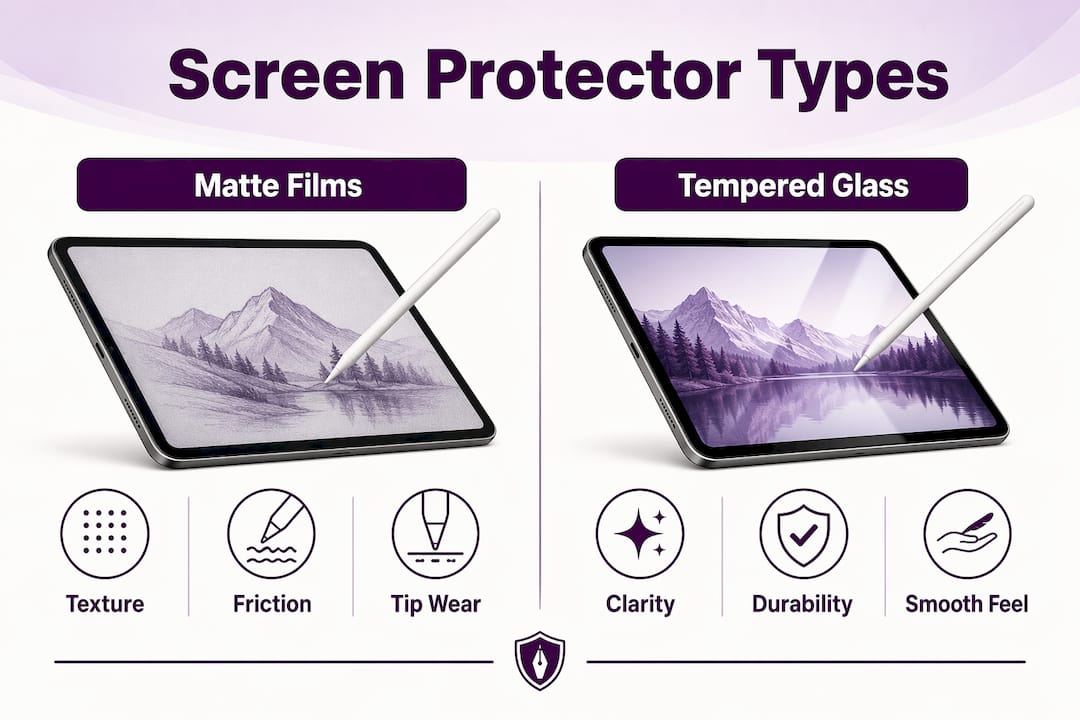
The two main categories are matte paper-textured films and tempered glass protectors. Each serves a different type of user, and the gap between them is significant.
Matte paper-textured films
Paper-textured films use a nano-dot or micro-etched surface to simulate paper friction for the Apple Pencil. Artists who spend more than half their iPad time drawing benefit most from this type. The added resistance improves line control and eliminates the “slippery glass” sensation that makes precise strokes difficult. The trade-off is a reduction in screen sharpness and colour vibrancy, which is most noticeable in darker environments.
Tempered glass protectors
Tempered glass protectors preserve the full clarity and colour accuracy of the iPad display. They offer strong impact protection and a smooth surface that feels natural for general use. For artists who also consume a lot of media or work with colour-critical applications, a high-clarity glass protector is worth considering. The downside is minimal friction, which reduces drawing precision.
| Protector type | Surface feel | Drawing suitability | Clarity | Best for |
|---|---|---|---|---|
| Matte paper-textured film | High friction | Excellent | Reduced | Frequent artists, note-takers |
| Anti-glare matte film | Moderate friction | Good | Moderate | Mixed use, bright environments |
| Tempered glass (clear) | Low friction | Fair | Full | Media consumers, light drawing |
| Tempered glass (anti-glare) | Low to moderate | Moderate | Good | General use with some drawing |
Artists who draw daily should choose a paper-textured film without hesitation. Artists who split their time equally between drawing and media consumption face a genuine trade-off, and the decision often comes down to personal tolerance for reduced clarity.
Pro Tip: Try a matte film for two weeks before judging it. Most artists find the clarity reduction far less noticeable after a short adjustment period.
How does screen protector texture affect Apple Pencil tip wear?
Surface texture directly determines how quickly your Apple Pencil tip wears down. On bare glass or a clear tempered glass protector, a tip can last twelve months or longer under regular use. On a matte paper-textured film, tip wear accelerates to every 4–6 months under heavy use. That is a meaningful difference in both cost and maintenance effort.
The reason is straightforward. Nano-dot and micro-etched surfaces create microscopic peaks and valleys. The Apple Pencil tip drags across these peaks with every stroke, wearing the soft polymer material faster than smooth glass would. The same friction that improves your line control is also grinding down your tip.
The practical benefits of that friction are real, though:
- Line stability. The resistance prevents the pencil from sliding past your intended endpoint, which is particularly useful for fine detail work.
- Reduced hand fatigue. A surface with balanced friction requires less grip pressure, which means your hand tires less quickly during long sessions.
- Natural drawing rhythm. The drag mimics the feel of a pencil on cartridge paper, which many artists find helps them work more intuitively.
- Reduced slippage. Diagonal and curved strokes stay on course more reliably than on smooth glass.
The key is finding a protector with the right friction level. Too much texture causes a scratchy, unpleasant feel and accelerates tip wear even further. Too little and you lose the control benefits entirely.
Pro Tip: Keep a spare set of Apple Pencil tips in your bag if you use a paper-textured protector daily. Replacing a worn tip immediately restores drawing precision and prevents you from compensating with extra pressure, which strains your hand.
How to install an iPad screen protector for the best drawing feel
A poor installation ruins the drawing experience before it starts. Bubbles, dust particles, and misalignment all create uneven surfaces that disrupt Apple Pencil tracking. A clean, accurate installation takes about ten minutes and the results last months.
What you need before you start
- A microfibre cloth
- A dust removal sticker or lint roller
- An alignment frame or guide (many quality protectors include one)
- A clean, well-lit room with minimal air movement
Step-by-step installation
- Clean the screen thoroughly. Wipe the iPad screen with the microfibre cloth using circular motions. Remove all fingerprints and smudges before proceeding.
- Remove dust particles. Use the dust removal sticker to lift any remaining particles from the screen surface. Pay attention to the corners and edges.
- Position the alignment frame. If your protector includes a frame, attach it to the iPad first. This removes the guesswork from alignment and is the single most effective way to avoid crooked installation.
- Peel the first layer. Remove only the first backing layer from the protector, exposing the adhesive or static-cling side.
- Lower the protector slowly. Starting from one edge, lower the protector onto the screen gradually. Do not drop it flat all at once.
- Smooth out bubbles. Use the included squeegee or a flat card to push air bubbles toward the nearest edge. Work from the centre outward.
- Remove the top layer. Peel the protective film from the outer surface to reveal the finished matte or textured coating.
- Check for trapped dust. If a dust particle is visible under the protector, lift the edge carefully and use the dust removal sticker to extract it before re-applying.
Nano-cling technology makes this process significantly easier. Static-cling protectors use no adhesive, so they can be lifted, repositioned, and reapplied without leaving residue or losing their grip. For artists who may want to remove the protector temporarily for colour-critical work, this is a practical advantage worth paying for.
Maintaining your protector to sustain drawing quality over time
A matte screen protector degrades faster than clear glass if cleaned incorrectly. The nano-dot coating is durable but not indestructible. Correct cleaning methods preserve the matte finish and keep drawing performance consistent over time.
Use only a dry or lightly dampened microfibre cloth. Avoid paper towels, rough fabrics, and alcohol-based cleaners, all of which can strip the matte coating. Never spray liquid directly onto the screen. For stubborn smudges, breathe lightly on the surface to create a small amount of moisture, then wipe gently.
Common problems and how to address them:
- Reduced friction. If the surface feels smoother than when new, the nano-dot coating may be wearing down. This is a sign the protector needs replacing.
- Visible scratches. Light surface scratches on the protector are normal and do not affect touch sensitivity. Deep scratches that catch the Apple Pencil tip mean it is time for a replacement.
- Bubble formation after installation. Small bubbles often disappear within 24–48 hours as the protector settles. Persistent large bubbles indicate trapped dust and require reinstallation.
- Reduced screen clarity. If the display looks noticeably hazier than when you first applied the protector, the coating has degraded and replacement is due.
Pro Tip: Replace your Apple Pencil tip and your screen protector at the same time. A fresh tip on a degraded protector, or a new protector with a worn tip, both produce suboptimal results. Replacing both together resets your drawing experience completely.
Balancing screen clarity and drawing feel: choosing for your workflow
The decision between a matte film and a clear glass protector is not purely about drawing. It is about your entire iPad workflow. Artists prioritise friction and control; media consumers prioritise clarity and colour vibrancy. Most iPad users fall somewhere between those two extremes.
Matte protectors reduce reflections and fingerprint smudges, which improves visibility in bright environments and outdoors. That anti-glare benefit is genuine and useful for artists who work near windows or in studios with strong overhead lighting. The cost is a subtle reduction in colour accuracy that becomes more apparent in dark scenes or when viewing high-resolution photography.
| User profile | Primary need | Recommended protector type | Clarity priority |
|---|---|---|---|
| Professional digital artist | Maximum friction and control | Matte paper-textured film | Low |
| Note-taker and student | Moderate friction, everyday use | Anti-glare matte film | Medium |
| Mixed artist and media consumer | Balance of both | Anti-glare tempered glass | High |
| Colour-critical illustrator | Accurate colour reproduction | Clear tempered glass | Very high |
Protector thickness also matters for drawing responsiveness. Thinner films offer a more natural drawing feel because the Apple Pencil tip sits closer to the actual display pixels. Thicker protectors provide better impact protection but can introduce a slight lag in touch sensitivity. For most artists, a film in the 0.1–0.3mm range offers the best balance.
Some artists remove their matte protector entirely when doing colour-critical work and reapply it for drawing sessions. Nano-cling protectors make this practical. A tempered glass option for iPad Pro is a strong alternative for artists who need reliable colour accuracy alongside solid screen protection.
Key takeaways
The best iPad screen protector for drawing is a matte paper-textured film that balances surface friction, Apple Pencil tip longevity, and screen clarity based on your specific workflow.
| Point | Details |
|---|---|
| Matte films improve drawing control | Paper-textured surfaces eliminate slippage and give the Apple Pencil the resistance it needs for precise strokes. |
| Tip wear accelerates on matte surfaces | Expect to replace Apple Pencil tips every 4–6 months under heavy use on textured protectors. |
| Installation quality matters | A clean workspace, dust removal tools, and an alignment frame prevent bubbles and misalignment that disrupt drawing. |
| Clean matte protectors correctly | Use only a dry microfibre cloth to preserve the nano-dot coating and maintain consistent friction over time. |
| Match protector type to your workflow | Artists benefit most from matte films; colour-critical work and media consumption favour clear tempered glass. |
What I have learned from using paper-textured protectors professionally
The first time I applied a paper-textured protector to my iPad Pro, I nearly removed it after an hour. The screen looked hazier than I expected, and the colour shift in Procreate was immediately obvious. I stuck with it, and within three days I had stopped noticing the clarity difference entirely.
What I had not anticipated was how much the friction would change my actual mark-making. Diagonal hatching lines became consistent in a way they simply were not on bare glass. I stopped gripping the Apple Pencil so tightly, which meant I could work for longer without my hand cramping. That alone justified the trade-off for me.
The tip wear is real and artists should budget for it. I go through tips roughly every five months with daily use. Buying a multipack of replacement tips is far cheaper than it sounds, and swapping a worn tip takes thirty seconds.
My honest advice to anyone hesitating: the decision is essentially binary. Either the paper feel immediately improves your workflow, or the clarity reduction is unacceptable to you. There is very little middle ground. The best way to find out is to try one for two weeks with genuine commitment. Most professional digital artists who do that end up keeping it permanently. The initial adjustment period is real, but the long-term preference for paper-textured protectors among working artists is equally real.
If colour accuracy is non-negotiable for your work, a high-clarity tempered glass protector is the right call. You can still draw on it. You just will not get the paper feel. That is a legitimate choice, not a compromise.
— Dian
SmartProtectors has the right iPad film for your drawing setup
Finding a quality iPad screen protector that fits your exact model and drawing style should not take hours of research. SmartProtectors carries a focused range of screen protectors for popular iPad models, including options suited to both artists who need matte protection and those who prioritise display clarity.
Every protector in the SmartProtectors catalogue is selected for fit accuracy and material quality. Whether you use an iPad Pro, iPad Air, or an older generation model, the range covers the models artists actually use. Installation guides and customer support are available if you run into any issues. Visit SmartProtectors to find the right screen protector for your iPad and your workflow, without paying over the odds for it.
FAQ
What is the best screen protector for drawing on an iPad?
A matte paper-textured film is the best screen protector for drawing. It adds surface friction that improves Apple Pencil control and eliminates the slippery glass sensation.
Does a matte iPad screen protector affect Apple Pencil tip life?
Yes. Matte protectors accelerate tip wear to roughly every 4–6 months under heavy use, compared to twelve months or more on smooth glass. Budgeting for replacement tips is part of using a textured protector.
Will a paper-textured protector reduce my screen quality?
Matte protectors do reduce screen sharpness and colour vibrancy to a degree, with the effect most noticeable in dark scenes. Most artists adapt to the change within a few days and find the drawing benefits outweigh the clarity reduction.
Can I remove and reapply a matte screen protector?
Nano-cling protectors use static adhesion rather than glue, so they can be removed and reapplied without leaving residue. This makes them practical for artists who switch between drawing and colour-critical work.
How do I clean a matte iPad screen protector without damaging it?
Use a dry microfibre cloth for everyday cleaning. Avoid alcohol-based cleaners and rough fabrics, which strip the matte coating. For stubborn marks, breathe lightly on the surface to add minimal moisture before wiping gently.