

Most MacBook owners don’t need a screen protector, full stop. Apple’s own guidance actively advises against leaving material on the display, and for everyday home or office use, the risks tend to outweigh the benefits. The exceptions are narrow: privacy in public spaces, near-constant travel, or dusty shared workstations. If you fit one of those, choose a non-adhesive, ultra-thin, model-specific option, not a generic film.
TL;DR:
- Most MacBook users do not need a screen protector unless they frequently work in public, dusty environments, or prioritize resale value.
- Apple explicitly warns against protectors that interfere with the lid closure, citing risks of pressure marks, coating damage, and sensor interference.
- The safest options include magnetic privacy filters, electrostatic films precisely cut for your model, or protective cases that do not contact the display glass.
- Proper application and removal require patience, a clean environment, and careful handling to avoid micro-bubbles, dust trapping, or damage to the coating.
- Alternatives like cases, regular cleaning, and AppleCare+ often provide better protection without risking screen damage.
Table of Contents
- Who actually benefits from MacBook display protection
- Why Apple warns against screen protectors
- Electrostatic film, tempered glass, or magnetic filter?
- How to fit and remove a protector without damaging the screen
- Lower-risk alternatives worth considering first
- What SmartProtectors recommends and why
- Protecting your MacBook without the risk
- Sources
- FAQ
Who actually benefits from MacBook display protection
Before you add anything to your screen, work out whether you genuinely fall into one of the groups where it pays off. Most people don’t, and that’s worth saying plainly before getting into the exceptions.
Privacy in public spaces is the strongest case. If you work on trains, in coworking spaces, or in client meetings where someone behind you could read your screen, a magnetic privacy filter solves a real problem. These filters sit outside the display’s edge rather than being stuck to the glass, which sidesteps most of the mechanical risk covered below.
Frequent transport and dusty environments are the second legitimate reason. Backpack commuters, tradespeople with laptops on jobsites, and anyone sharing a machine with colleagues face a higher risk of grit finding its way onto the display before the lid closes.
Resale value is a fair, if secondary, motivation. Keeping the screen pristine for a trade-in is a reasonable cosmetic goal, even without a functional need.
Everyone else, the person who uses a MacBook at a desk, in a case, closed carefully, doesn’t need one:
- Home and hybrid office users with a stable desk setup
- Anyone who already wipes the screen down occasionally with a soft cloth
- Owners planning to keep the machine long term rather than resell it
- Users who close the lid without leaving pens, crumbs, or cables on the keyboard
Why Apple warns against screen protectors
Apple’s support documentation is unambiguous: leaving any material on the display risks interfering with the lid’s closure and can damage the screen. That’s not marketing caution; it’s a design constraint. The gap between a closed MacBook’s keyboard and display is tight enough that even a thin film changes the pressure distribution when the lid shuts.
The statistic worth remembering here isn’t a percentage, it’s a pattern. Across Apple’s own community forums, the recurring complaint from users who’ve tried protectors isn’t scratching, it’s pressure marks: faint discoloured patches that appear after weeks of closing the lid on a protector that’s slightly too thick or misaligned.
There are three specific failure modes worth knowing:
- Anti-reflective coating damage. Adhesive films can strip or cloud the AR coating when removed, sometimes permanently, because that coating sits on the very top layer of the glass.
- Trapped debris and thickness. A speck of dust under a film, or a film that’s marginally too thick for the specific hinge tolerance, concentrates pressure into a single point every time the lid closes.
- Optical and sensor interference. Poor-quality films can dull brightness and, on models with ambient light sensors, interfere with True Tone colour adjustment, which matters if you do any colour-critical work.
None of this means every protector is dangerous. It means the margin for error is small, and generic, ill-fitting products are where the damage happens.
Electrostatic film, tempered glass, or magnetic filter?
If you’ve decided you’re in one of the groups that benefits, the type you choose matters more than whether you choose one at all.
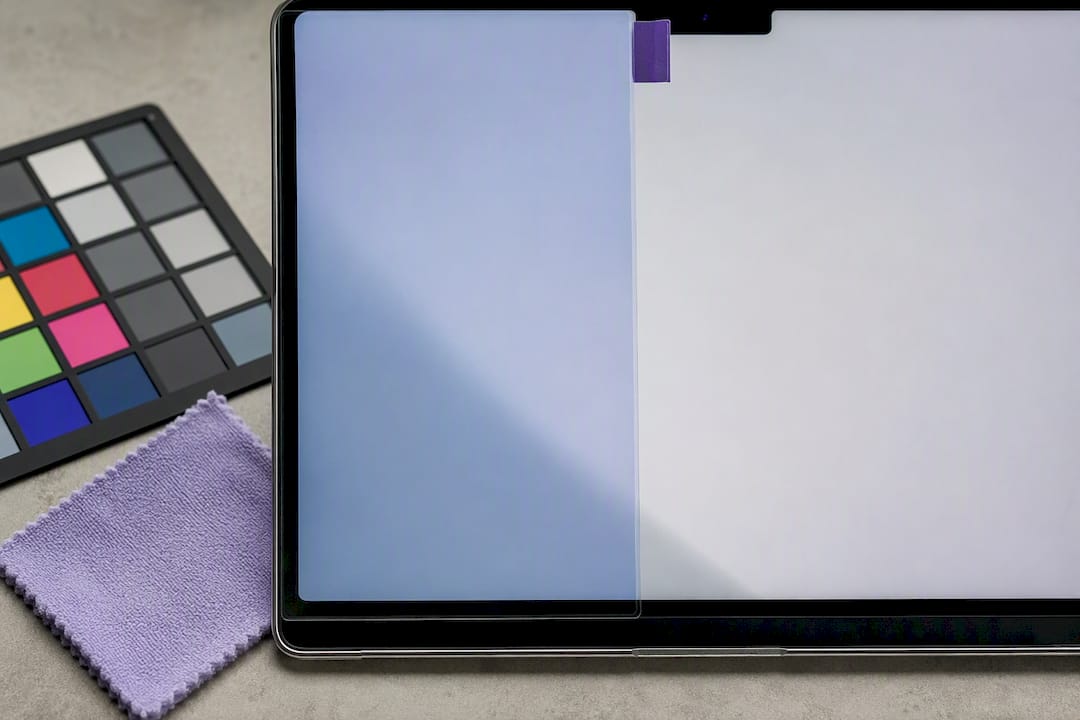
- Electrostatic film clings via static rather than adhesive, leaves minimal residue, and adds almost no thickness. It’s the best fit for scratch-prone environments, but only if it’s cut precisely for your exact model, generic sizing is where most complaints start.
- Tempered glass offers strong scratch resistance but adds noticeable thickness. On a MacBook, that’s a liability rather than a feature: the lid closure tolerance is tight, and independent testing generally concludes that tempered glass is usually an unnecessary and risky choice for this particular device.
- Magnetic privacy filters mount outside the active display area using magnets rather than adhesive, which makes them the safest option for the AR coating when correctly bezel-mounted. They’re also fully removable with zero residue.
Newer MacBook Pro models with notched displays and curved bezels need protectors cut for that exact geometry. A generic 14 inch or 16 inch film frequently misaligns on these shapes.
Pro Tip: If colour accuracy matters for your work, test any protector against a white background in daylight first. Even a slight tint can throw off photo editing or design proofing before you’ve noticed it.
How to fit and remove a protector without damaging the screen
Getting this wrong is how most of the horror stories in Apple’s forums start. Getting it right is mostly about patience and the right environment.
- Prep the space. Work in still air (no fans, no open windows) with moderate humidity, on a clean, clutter-free surface.
- Clean the screen properly. Use a soft, lint-free cloth, as Apple recommends, and avoid anything with alcohol or ammonia near the coating.
- Apply using the tape-hinge method. Tape one edge of the film in place, lower it slowly, and press outward from the centre to push air toward the edges rather than trapping it in the middle.
- Centre magnetic filters carefully. Align to the bezel edges before letting the magnets snap into place; they’re far less forgiving of a second attempt than film.
- Remove slowly. Peel at roughly a 30 degree angle, use a plastic card rather than a fingernail to lift the corner, and never use solvents near AR-coated glass.
- Inspect after 24 hours. Check for micro-bubbles or faint pressure lines where the lid has been closing on the new surface, and re-seat if anything looks off.
Lower-risk alternatives worth considering first
A protector isn’t the only route to a scratch-free screen, and for most people, it isn’t even the best one.
- A padded sleeve or hardshell case absorbs the bumps and grit that actually cause most screen damage during transit.
- Wiping the keyboard and screen area regularly prevents the crumbs and grit that cause pressure marks in the first place.
- Keyboard covers work fine, but only if you remove them before closing the lid; leaving one in place is exactly the scenario Apple warns against.
- AppleCare+ covers accidental damage outright, which is a stronger safety net than any film for genuine drops or cracks.
- For privacy specifically, screen dimming or a physical filter solves the problem without touching the glass at all.
What SmartProtectors recommends and why
Dian, who covers device protection for SmartProtectors, puts it simply: most enquiries about MacBook protectors come from people who don’t need one, and the honest answer is more valuable than a sale. There are options available for people who genuinely qualify, such as frequent travellers, privacy-conscious professionals, and shared workstation users, to obtain a proper fit rather than a generic film gambled on eBay. The catalogue covers screen protectors, lens protectors, cases and back covers sized to specific models, and where a MacBook variant isn’t listed, a request goes to sourcing so the right fit gets added rather than the customer settling for the wrong one.
— Dian
Protecting your MacBook without the risk
If you’ve decided a case makes more sense than a film, that’s usually the safer call for most travel and jobsite scenarios. SmartProtectors’ custom fit protective cover for MacBook Air models absorbs knocks without touching the display at all, and if aesthetics matter as much as protection, the stylish pattern laptop case covers both.
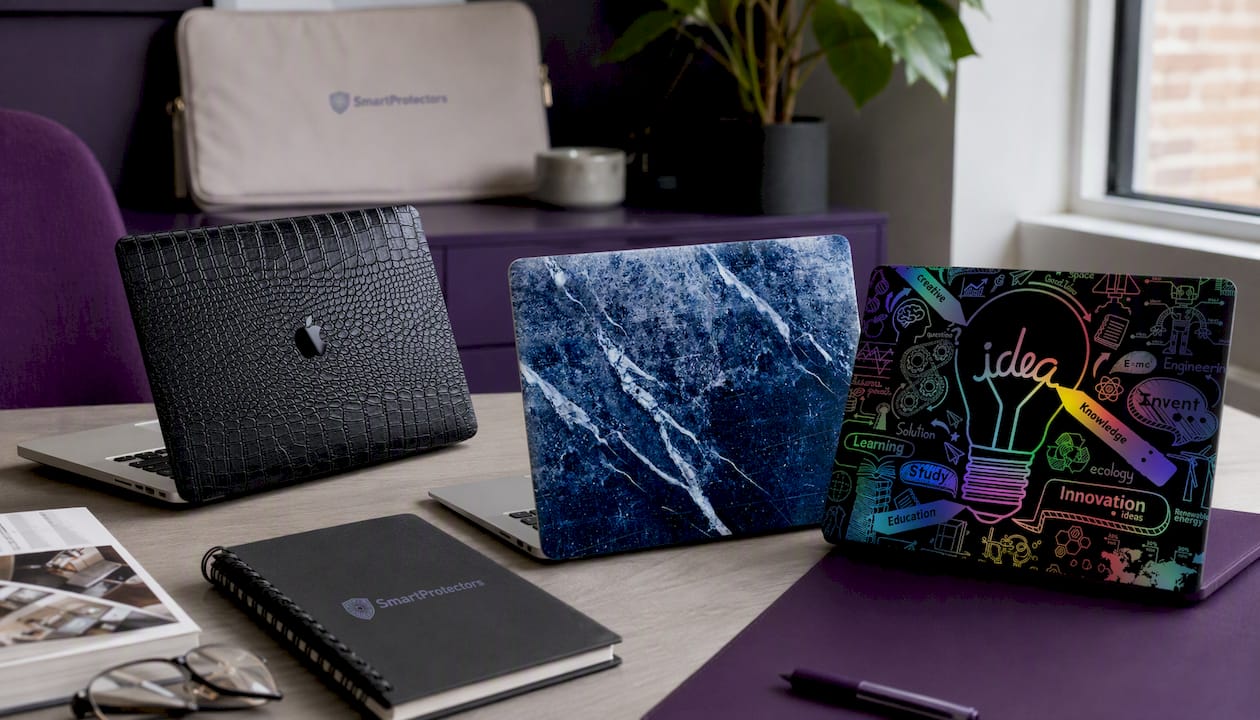
For a broader fit across MacBook generations, the shock-resistant protective case is built for exactly this: keeping the shell and screen safe in transit without any adhesive near the glass. If your exact model isn’t listed against any of these, submit a request through the SmartProtectors catalogue and the team will source and add it. Browse the current range and find your model’s fit today.
Sources
- Apple Support — Clean your Apple notebook computer
- Apple Community thread — is it safe to put screen protector for my…
- Should You Put a Screen Protector on MacBook Pro? (2024 Guide)
FAQ
Does Apple recommend a screen protector?
No. Apple’s support documentation specifically advises against leaving material on the display, warning it can interfere with the lid closing properly and risk damage.
Does a MacBook need a screen protector?
Most owners don’t need one; the exceptions are privacy in public spaces, frequent travel, or dusty shared workstations, where a well-fitted, non-adhesive option like a magnetic filter is the safer choice.
Does the MacBook screen scratch easily?
MacBook displays hold up well under normal use, and independent guides note that scratch protection alone rarely justifies the trade-offs of a permanent film.
Is it necessary to put a screen protector on a laptop?
Generally no. For most laptops, including MacBooks, a case or sleeve plus careful handling delivers most of the same protection without the coating and closure risks a stuck-on film introduces.