

A well-made, correctly fitted screen protector rarely causes a noticeable loss of touch sensitivity. The key word is “fitted”: most responsiveness problems trace back to installation faults, not the protector material itself. Screen protectors are an additional layer placed over your display and can cover the existing oleophobic coating, which occasionally interferes with how the touchscreen registers input.
If your screen feels sluggish after fitting a protector, start here:
- Enable the “Touch sensitivity” or “Screen protector mode” toggle in your phone’s display settings.
- Remove the protector, clean both surfaces, and re-seat it carefully to eliminate trapped dust or air bubbles.
- If problems persist after reinstallation, replace the protector with a higher-quality option that uses full-surface adhesive.
Key takeaways
A well-fitted, quality screen protector with full-surface adhesive causes minimal touch sensitivity loss, and most issues are resolved by enabling device settings or reinstalling carefully.
| Point | Details |
|---|---|
| Quality and fit matter most | Full-surface adhesive and correct alignment prevent the air gaps that reduce sensitivity. |
| Check settings first | Enable “Touch sensitivity” or “Screen protector mode” in display settings before any hardware fix. |
| Reinstall before replacing | Most dead zones and ghost touches are caused by dust or bubbles, not the protector material. |
| Test systematically | Use keyboard-edge typing and slow-grid drawing to pinpoint whether the issue is the protector or the digitiser. |
| SmartProtectors | Stocks tempered glass and hydrogel options with installation tools, covering a wide range of UK devices. |
Table of Contents
- How does a touch sensitivity screen protector actually work?
- Which protector materials are least likely to reduce touch responsiveness?
- Phone settings that restore responsiveness after fitting a protector
- Best installation practices and troubleshooting when touch gets worse
- Quick tests to check touchscreen responsiveness after fitting a protector
- When should you replace a protector and what should you look for?
- How we evaluate protectors for touch responsiveness
- How screen protectors affect stylus use and touch gestures
- The honest trade-off between protection and responsiveness
- Get a screen protector that preserves your touch response
- Sources
How does a touch sensitivity screen protector actually work?
Your phone’s display uses capacitive sensing: it generates a small electrical field across the glass, and your finger disrupts that field to register a touch. No pressure is needed. What matters is how well the electrical signal travels through whatever sits between your fingertip and the digitiser beneath the glass.
Add a protector and you add another layer for that signal to cross. A thin, well-adhered protector barely changes the coupling. A thick one with air gaps is a different story: air is a poor conductor, so any gap between the protector and the screen weakens the signal noticeably. Poor adhesive coverage, lifted edges, or a protector that bows slightly in the centre all create those gaps.
Think of it as a chain: finger → protector → adhesive layer → glass → digitiser. Every link matters. A break anywhere in that chain, even a small dust particle under the protector, can create a dead zone or a ghost touch.
Which protector materials are least likely to reduce touch responsiveness?
Material choice matters, but manufacturing quality matters more. Here is how the main types compare.
Tempered glass is the most popular choice and, when made well, the least likely to affect responsiveness. Typical tempered glass thickness runs around a third of a millimeter to half a millimeter, while plastic film protectors are much thinner. That extra thickness sounds significant, but a well-made tempered glass protector causes little noticeable change when the adhesive is consistent and the fit is precise.
PET film is thinner and cheaper, but inconsistent adhesive coverage on budget options can introduce micro-gaps that hurt responsiveness more than a quality glass protector would.
TPU and hydrogel films are flexible and self-healing. They conform well to curved screens, which reduces air gaps at the edges. Touch response is generally good, though the softer surface can feel slightly different under a stylus. For a detailed comparison of glass and hydrogel options, the tempered glass vs hydrogel guide at SmartProtectors covers the trade-offs clearly.
Privacy filters add a micro-louvre layer that restricts viewing angles. That extra structure can reduce sensitivity, particularly at the edges, and they tend to perform worst of all material types for touch response.
The oleophobic coating on your protector also matters. Once it wears away, finger friction increases and swipe gestures feel sticky rather than smooth. That is not a digitiser problem, but it feels like one.
Pro Tip: Look for protectors labelled “full-surface adhesive” or “full-glue” construction. These bond across the entire screen rather than just the edges, eliminating the air gap that causes most sensitivity complaints. The IMAK Pro series sensitive touch film is a good example of this approach.
Phone settings that restore responsiveness after fitting a protector
Before you remove the protector, check your settings. Device makers commonly provide a “Touch sensitivity” or “Screen protector mode” toggle, and enabling it is the fastest fix available.
- Samsung Galaxy devices: go to Settings → Display → Touch sensitivity. One toggle, takes five seconds.
- Other Android devices: look under Settings → Display, or Settings → Accessibility → Touch.
- iPhones: iOS adjusts sensitivity automatically; if response feels off, check Settings → Accessibility → Touch → Touch Accommodations.
- Restart your phone after enabling any new setting. Some sensitivity changes only take effect after a reboot.
- Check for pending OS updates. Manufacturers occasionally push digitiser calibration improvements in minor updates.
If the setting is already on and the problem remains, the issue is almost certainly physical: dust, a bubble, or a lifted edge. Move on to the installation checks below.
Best installation practices and troubleshooting when touch gets worse
Fix physical issues before blaming the protector material. The vast majority of post-installation touch problems come from trapped debris, air pockets, or misalignment, not from the protector itself.
Step-by-step reinstallation:
- Work in a bathroom after running a hot shower for two minutes. Steam settles airborne dust.
- Power off the phone before removing the old protector.
- Wipe the screen with the dry microfibre cloth supplied in the kit, then use the alcohol wipe to remove oils. Let it dry fully.
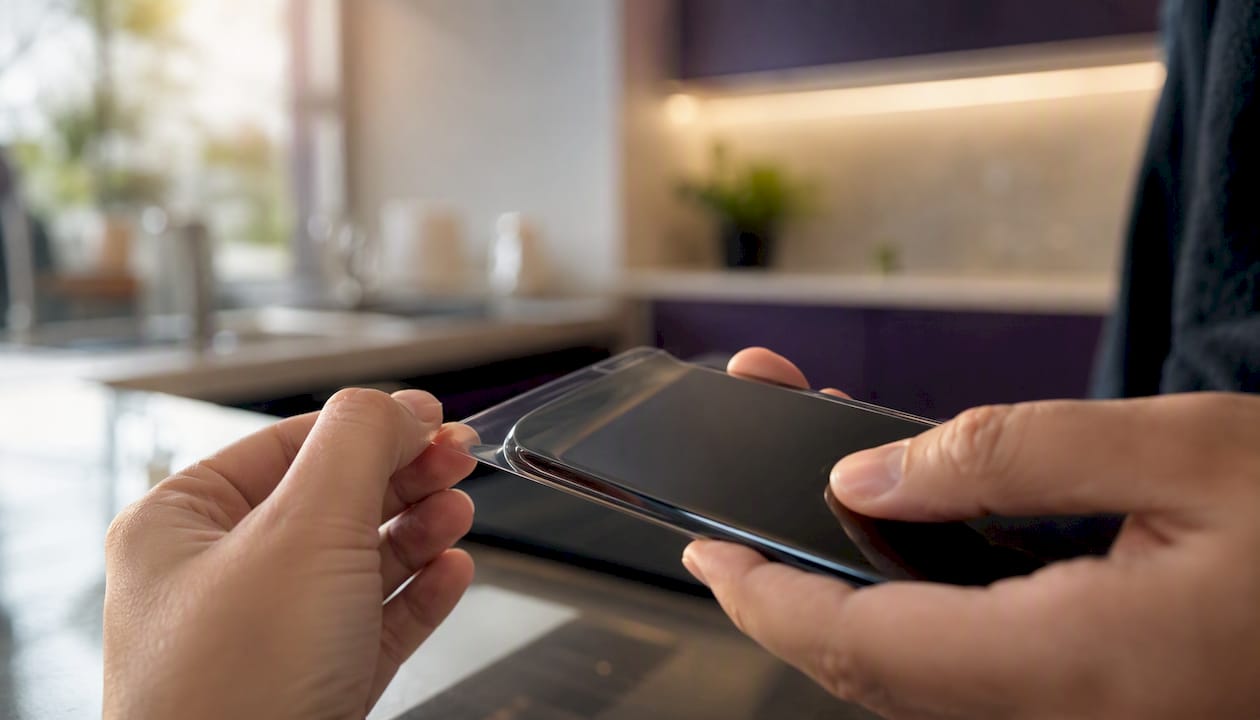
- Peel the protector backing and align it carefully before letting it touch the screen.
- If an installation tray or frame is included, use it. Products like the full-coverage protector with installation tool for Samsung Galaxy S24 Ultra include a frame that eliminates alignment guesswork entirely.
- Once placed, press from the centre outward with the squeegee card to push out bubbles.
- Power on and test immediately.
Troubleshooting by symptom:
- Dead zone in one area: almost always trapped dust or a bubble directly beneath that spot. Reinstall.
- Ghost touches: moisture under the protector, or a case pressing on the protector edge. Remove the case and test.
- Edge non-response: the protector overhangs the digitiser boundary, or the edge adhesive has lifted. Re-applying or cleaning often resolves this.
- Whole-screen sluggishness: check the sensitivity setting first; if already enabled, the protector may be too thick or low quality.
Remove and replace when symptoms persist after two careful reinstallation attempts. Re-seating is worth trying once; doing it repeatedly risks scratching the screen.
Quick tests to check touchscreen responsiveness after fitting a protector
Run these checks before deciding whether the protector or the device is at fault. The whole process takes under five minutes.
- Keyboard edge typing: open the default keyboard and type quickly, paying attention to the leftmost and rightmost keys. Consistent misses in the same column point to an adhesion problem at that edge.
- Slow grid drawing: open a notes app and draw a slow, diagonal grid across the full screen. Any straight line that jumps or skips reveals a dead zone.
- Edge-swipe gestures: swipe in from each edge repeatedly. Hesitation on one side suggests lifted adhesive there.
- Pointer visualisation: on Android, enable Settings → Developer options → Show touches. This displays a dot wherever the system registers input, making it easy to see if touches are registering in the wrong place.
Recalibrating touch input and running standardised tests like these reliably separates protector issues from digitiser faults. If the grid test shows consistent skips in the same spot after reinstallation, the digitiser itself may need attention.
Environmental note: cold temperatures (below around 5°C) reduce capacitive sensitivity noticeably, and high humidity can cause ghost touches. If your results vary between indoors and outdoors, test again at room temperature before drawing conclusions.
When should you replace a protector and what should you look for?
Replace the protector if you have persistent dead zones after two reinstallation attempts, visibly lifted edges that cannot be pressed back down, or an oleophobic coating so worn that swipes feel rough. A protector in that condition is doing more harm than good.
When buying a replacement, look for:
- Full-surface adhesive (sometimes labelled “full-glue”): eliminates air gaps across the whole screen.
- Specified thickness: 0.33mm is the sweet spot for most users; thinner feels more responsive, thicker offers better impact protection.
- Case compatibility: check that the protector does not overhang the edge where your case presses down.
- Oleophobic coating: listed explicitly in the product description; it affects daily usability as much as sensitivity.
- Included installation tools: a frame or tray is not a gimmick. It prevents the misalignment that causes most edge-response problems.
- Customer reviews mentioning responsiveness: a pattern of complaints about dead zones is a reliable warning sign.
For stylus use, prioritise thinner glass (0.33mm or below) with a matte or paper-feel surface if available. A standard glossy protector adds enough friction to make fine stylus strokes feel imprecise. For gaming, full-surface adhesive and a smooth oleophobic coating matter most; swipe speed and multi-touch accuracy both degrade when the coating wears.
UK buyers: most reputable sellers offer a 30-day return window. Check the returns policy before purchasing, particularly for curved-screen devices where fit is harder to guarantee.
How we evaluate protectors for touch responsiveness
We test for responsiveness under real-use conditions, not just controlled lab swipes. The methodology covers:
- Testing across multiple device models (flagship, mid-range, and budget tiers) to account for digitiser sensitivity differences between manufacturers.
- Running a standardised test battery: keyboard-edge typing, slow-grid drawing in a notes app, high-speed swipe gestures, and multi-touch pinch-to-zoom.
- Checking edge gestures specifically, since edge lift is the most common failure mode.
- Repeating all tests after a reboot, because some sensitivity settings only apply post-restart.
- Controlling for environment: all primary tests at 20°C and 50% relative humidity.
For a deeper look at what separates a quality protector from a cheap one, the SmartProtectors guide on how to choose the perfect tempered glass covers construction details and quality indicators that are worth reading before you buy.
How screen protectors affect stylus use and touch gestures
A protector adds a layer between the stylus tip and the digitiser, which changes two things: the friction the stylus tip feels, and the precision of fine strokes. On a bare screen, a capacitive stylus registers input cleanly. Add a 0.5mm glass protector and the tip is physically further from the digitiser, which can shift where the stroke registers by a small but noticeable margin at the edges of the screen.
For casual note-taking, that shift is imperceptible. For precise illustration or handwriting recognition, it matters. A thinner protector (0.2mm or 0.33mm) reduces the offset. A matte-finish protector adds paper-like texture that many stylus users prefer, though the rougher surface wears stylus tips faster.
Multi-touch gestures, such as pinch-to-zoom or three-finger swipes, are more sensitive to air gaps than single-touch input. If a gesture that requires two simultaneous contact points fails intermittently, a partial bubble between the protector and the screen is the likely culprit. The fix is the same: reinstall with full-surface adhesive and no trapped air.
The honest trade-off between protection and responsiveness
The debate around screen protectors and touch sensitivity is mostly settled: fit and quality determine the outcome, not the category. A cheap protector with patchy adhesive will degrade your experience. A well-made one with full-surface bonding, installed carefully, becomes imperceptible within a day or two as your muscle memory adjusts.
The trade-off worth acknowledging is this: the thinnest protectors preserve the most sensitivity but offer the least impact resistance. A 0.33mm tempered glass sits in a reasonable middle ground for most people. If you use a stylus professionally or play games at a competitive level, it is worth spending more on a protector specifically designed for those use cases rather than assuming any protector will do.
One thing that surprises people: the settings step is often skipped entirely. Enabling the touch sensitivity toggle on a Samsung, or checking the equivalent on your device, takes ten seconds and frequently solves the problem before any hardware adjustment is needed.
Get a screen protector that preserves your touch response
Fitting a protector should not mean compromising on how your phone feels to use. SmartProtectors stocks tempered glass, hydrogel, and full-glue screen protectors designed to maintain touch responsiveness across a wide range of smartphones, tablets, smartwatches, and laptops, with UK delivery and straightforward returns.
Every order includes the installation tools needed to fit the protector correctly the first time, reducing the risk of bubbles and misalignment that cause most sensitivity complaints. If your exact device model is not listed, submit a sourcing request and SmartProtectors will add it to the catalogue. Browse the full range and order at SmartProtectors.
Sources
- Screen protector
- Can a Screen Protector Affect My Touchscreen Sensitivity? - Geeks Know This
- Does Tempered Glass Screen Protector Affect Touch Responsiveness and Accuracy
- How to Fix Touch Sensitivity Issues With Your Phone Screen Protector - iPro+
- Recalibrate Touch Input After Applying a Screen Protector